
The Payslip Format page controls how your company's payslips look, including the layout, company logo, and footer. To access these settings, go to Payroll > Configuration > Payroll > Payslip Format. These settings affect payslip appearance only — they do not change how payroll amounts are calculated.
Payslip Format Options
Two payslip format options are available:
- Customizable Payslip – Design your own layout by adding, removing, and arranging fields.
- Preset Payslip Format – Choose from a selection of ready-made templates.
Only one option can be active at a time. Enabling one toggle automatically disables the other. Toggle changes are saved immediately and a confirmation message will appear — you do not need to click Submit to save a toggle change.
Note By default, only the Preset Payslip Format is available. To request access to the Customizable Payslip builder, contact JustLogin support at support@justlogin.com. |
Using the Customizable Payslip
The Customizable Payslip builder lets you arrange fields to match your company's preferred payslip layout.
Step 1: Enable the Customizable Payslip
- Go to Payroll > Configuration > Payroll > Payslip Format.
- Turn on the Customizable Payslip toggle.
- The default customizable template will appear.
The template comes pre-populated, so you do not need to start from scratch. Under the Actions column you will see two icons:
- Pencil icon – Opens the payslip builder so you can edit the layout.
- Eye icon – Lets you preview the payslip and generate a sample PDF.
Step 2: Open the Payslip Builder
Click the pencil icon to open the template in the builder. The builder is divided into two columns:
-
Left column (Field Palette) – Available fields grouped into four categories: Company Information, Employee Information, Others, and Salary Information.
-
Right column (Payslip Layout) – Ten section slots arranged in two columns. Each section can hold different fields that determine how information appears on the payslip.
Step 3: Add or Remove Fields
To add a field:
- Select the appropriate category on the left (for example, Employee Information).
- Find the field you want to add.
- Click and drag the field into your preferred section on the right.
- Repeat for any other fields you want to include.
To remove a field, click the three-dot menu on the field and select the delete option. Continue rearranging fields until the payslip displays the information you need.
The default template includes the JustLogin logo in Section 3. To display your own company logo instead, remove the logo field via its three-dot menu, then upload your logo in the Company Logo by clicking the default Justlogin logo.
Step 4: Preview and Save
-
Preview – Click Preview to see a sample of your payslip. You can save the sample as a PDF for reference.
-
Save – When you are satisfied with the layout, click the green Save button. A confirmation message — "Success, template changes saved." — will appear.
Step 5: When Does the New Layout Take Effect?
The updated layout applies to payslips generated in future payroll runs. Payslips that have already been released will not be affected. The new format will be used the next time you run payroll and release payslips.
Important Note The Customizable Payslip is currently only available for Singapore and Malaysia accounts. |
Using the Preset Payslip Format
The Preset Payslip Format lets you choose from existing templates without building a custom layout. Note that preset templates use fixed layouts — you cannot freely add, remove, or rearrange individual fields as you can with the Customizable Payslip builder.
Step 1: Enable the Preset Payslip Format
- Go to Payroll > Configuration > Payroll > Payslip Format.
- Turn on the Preset Payslip Format toggle. Enabling this option automatically turns off the Customizable Payslip option.
- The available templates will appear. Browse and choose the one that best suits your company.
Step 2: Understand the Three Format Columns
Each template displays three format columns so you can see how the payslip will look in different contexts:
| Format | Description |
|---|---|
| Web View | How the payslip appears when employees view it on the JustLogin website. |
| Payslip PDF | The PDF format employees receive by email and can download via the website or mobile app. |
| Payslip Report | The layout used when an administrator generates a payslip report. |
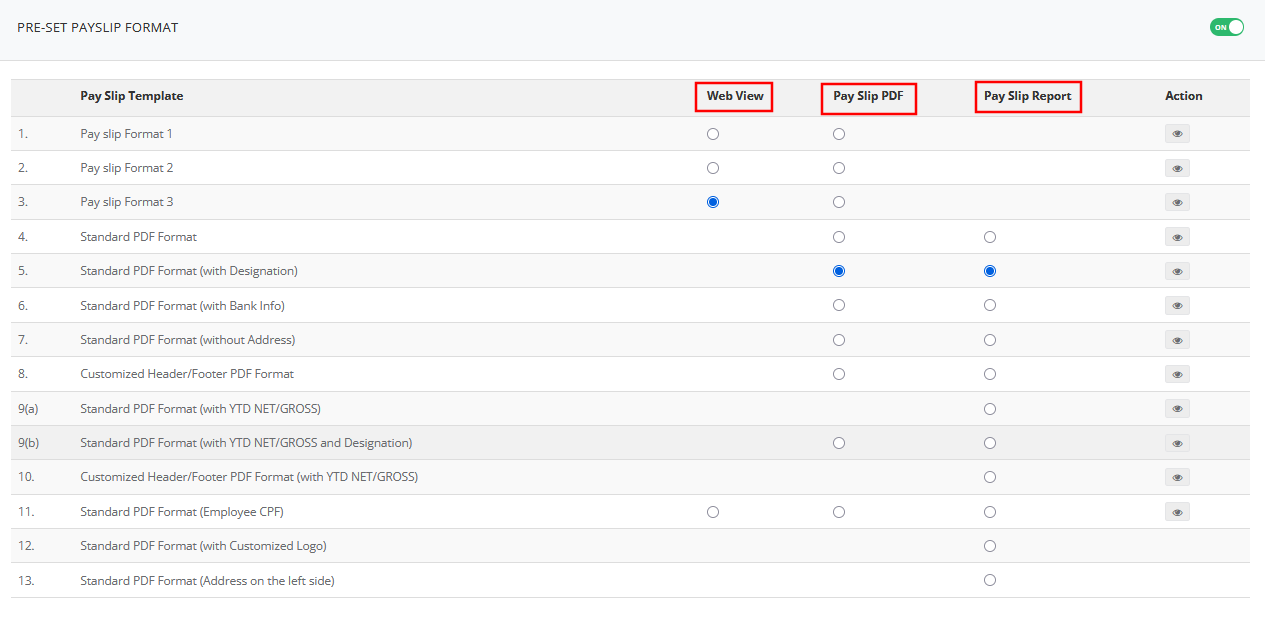 Step 3: Preview and Select a Template
- Under the Actions column, click the eye icon to preview a template.
- Review the sample to confirm it meets your company's needs.
- Select the template using the available controls on the page.
Company Logo
Regardless of which format option you use, you can upload a company logo to personalize your payslips.
Upload Your Company Logo
- Locate the company logo upload section on the Payslip Format page.
- Drag and drop your logo into the designated area, or use the upload control to select the file.
- Ensure the image dimensions do not exceed 300 × 150 pixels. Resize the image before uploading if needed.
Save Your Settings
Once you have finished updating the logo and footer details, click the green Submit button at the bottom of the page. A confirmation message will appear when the settings have been saved successfully.