
Introduction
If you have enabled the option for the staff to submit their timesheet for approval, you can also set up the reminder to be sent to the staff as well as the different approval levels. To do so, please check out the following steps:
Steps
PART 1 - Setting up the approval workflow
Step 1: Log in to your account
Step 2: Go to 
Step 3: Click on 
Step 4: Look for the  tab at the top
Step 5: Scroll down and look for the  section
Step 6: Put a tick on the 2 options that you see below: (This will enable the staff to submit their timesheet for approval)
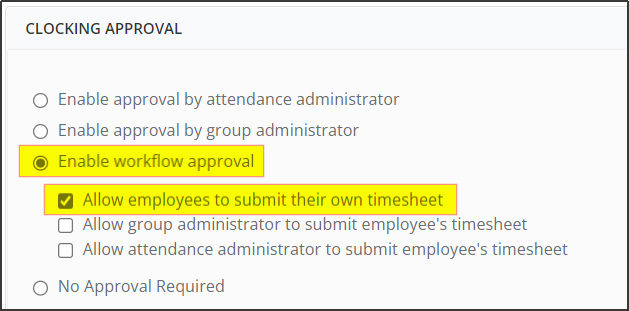
Step 7: Click on  to save your settings.
PART 2 - Setting up the reminder
Step 1: Go to 
Step 2: Click on
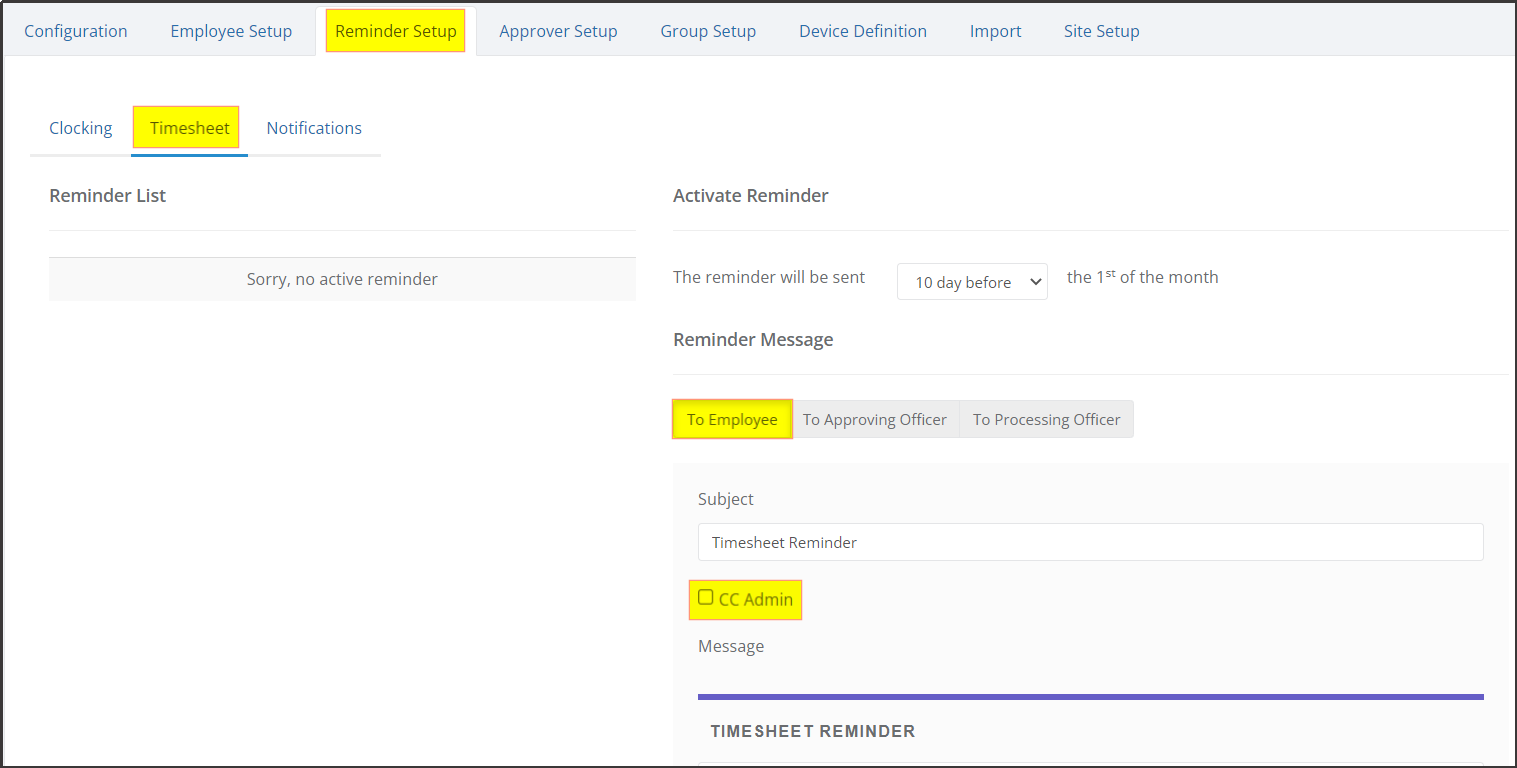
Step 3: Select the  tab at the top
Step 4: Click on the sub-tab
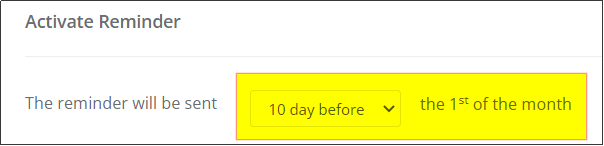
Step 5: Set the number of days before the reminder will be sent: (Note that this is for the staff reminder)
Step 6: Tick the box beside “CC admin” if you’d like the Admin to receive the reminder as well
Step 7: Click on  to save your settings.
NOTE: Please do the same steps for each approval level in your workflow. For Approving Officers and Processing officers, the reminder notification will be sent after a certain number of days that the timesheet is pending for approval
